
Week 3 – Extra-1: Detecting File Extension Mismatch
Part 4: Detecting File Extension Mismatch
Evidence
For this lab, use the forensic image Windows_Evidence_001.E01.
The image can be obtained in one of the following ways:
- Downloaded from Moodle, or
- Accessed via the CyberLab shared folder.
Lab Scenario
An attacker has stored malicious files on a system to steal sensitive data. To evade firewalls and anti-malware tools, the attacker has changed file extensions so the files appear harmless. Some files have been renamed with extensions such as .sys to disguise them as system files and reduce scrutiny.
As a forensic investigator, your task is to detect these file-extension mismatches so the files can be collected and analysed further.
Lab Objective
A file extension is a suffix used by operating systems to identify file types.
This lab focuses on detecting mismatches between a file’s extension and its actual file signature using Autopsy.
Overview
This lab introduces the concept of file-extension mismatch and demonstrates how Autopsy can automatically detect such discrepancies during analysis.
Task 1: Creating a New Case
- Launch Autopsy and click New Case.
- Enter the Case Name:
File Extension Mismatch. - Select a suitable Base Directory and click Next.
Task 2: Adding the Data Source
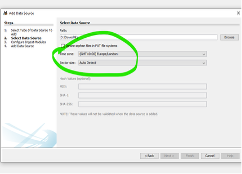
- In the Add Data Source window, ensure Disk Image is selected.
- Click Browse and select the forensic image
Windows_Evidence_001.E01. - Leave the time zone set to default for this lab.
In real investigations, always match the time zone to the original system.
Task 3: Configuring Ingest Modules
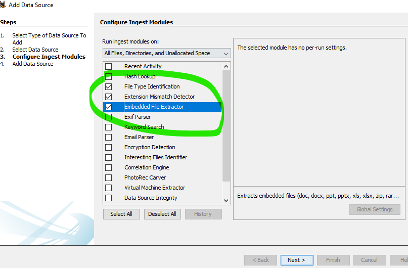
- In Configure Ingest Modules, ensure the following options are selected:
- File Type Identification
- Extension Mismatch Detector
- Embedded File Extractor
- Click Next to begin analysis.
Task 4: Monitoring the Analysis
- Autopsy may use most system resources during scanning.
- Avoid interacting with the virtual machine until analysis reaches 100%.
Task 5: Reviewing the Image Contents
- Expand Data Sources in the left pane.
- Select the image file to view its contents in the right pane.
Task 6: Identifying Extension Mismatches
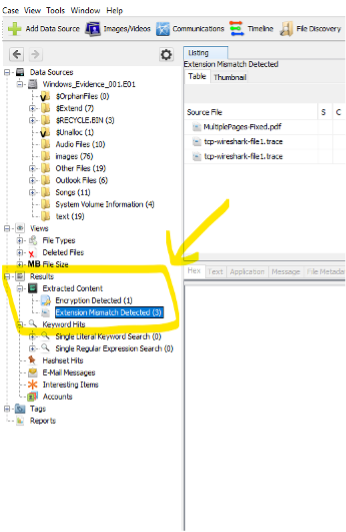
- In the left pane, click Extension Mismatch Detected.
- Review the list of files with mismatched extensions.
Task 7: Examining Mismatched Files
- Select a mismatched file to view its contents in the lower pane.
Answer the following:
- What is the file’s actual file type based on its content?
- What is the modified extension, and what do you think the attacker intended to hide?
__________________________________________________