
Week 8 - Part1: An Introduction to Registry Viewer
Objectives
- Export registry information from a forensic image
- Examine registry hives using Registry Viewer
- Introduce Reg Ripper as an automated registry analysis tool
The Windows Registry is a central database that stores configuration details for the operating system and user accounts. Understanding how to extract and interpret this data is a core skill in digital forensics.
Requirements
You will need:
- FTK Imager (It should be installed on all the CyberLab machine )
- The file Clampet16.EO1, you can either:
- Find in you CyberLab shared folder week-8
- Or you can download from here.
Task 1: Exporting Registry Files from a Forensic Image
This task introduces evidence extraction. You will locate and export registry hives that contain system-level and user-level artefacts.
-
In your Documents folder, create a directory named Clampet Registry Files.
This folder will store all exported registry hives for later analysis. -
Inside this directory, create four subfolders: Elly, Granny, Jed, and Jethro.
These correspond to Windows user accounts found on the evidence image. -
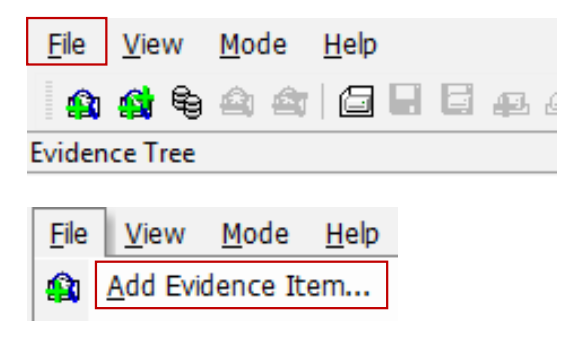
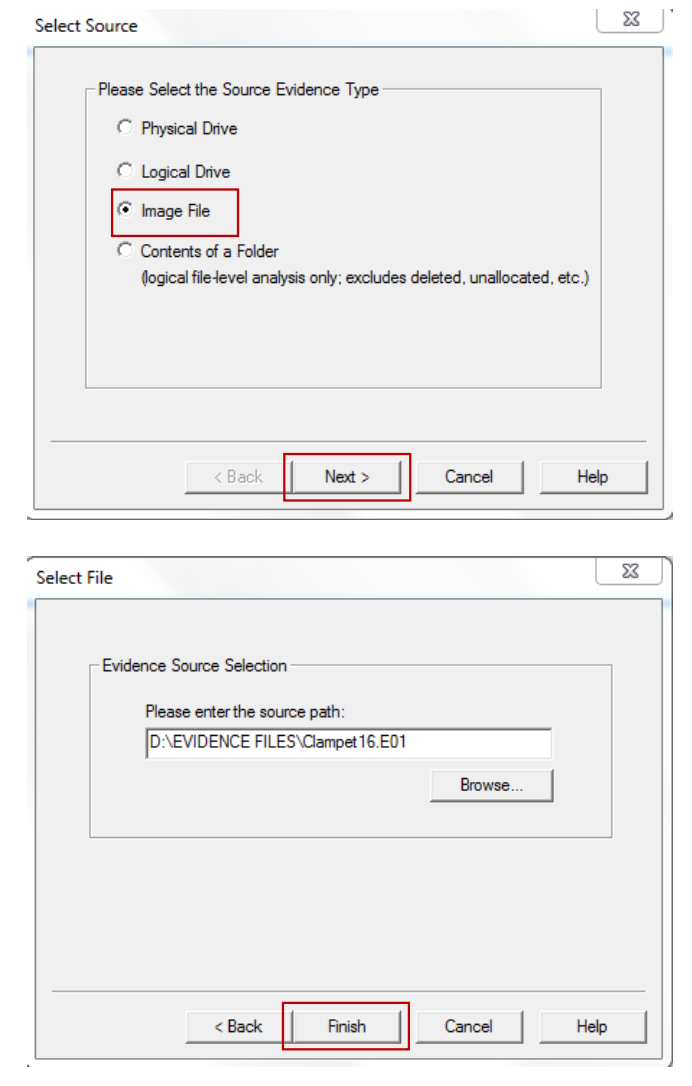
Open FTK Imager and load the Clampet16.EO1 image file.
-
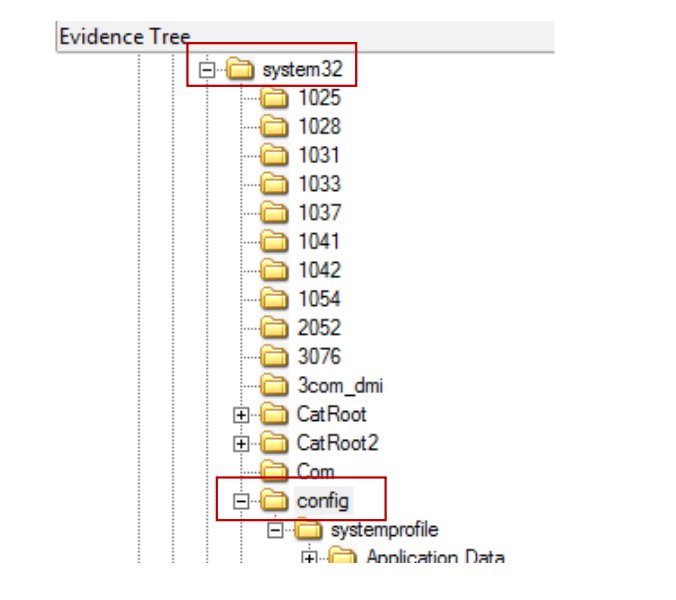
Expand the evidence tree and navigate to:
WINDOWS → System32 → Config
This directory contains the core system hives used by Windows.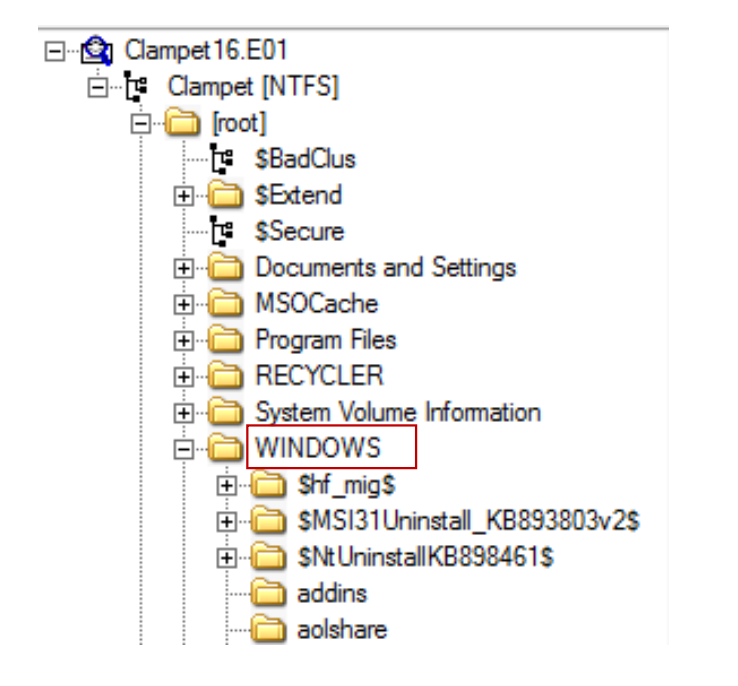
-
Export the registry hives SAM, SYSTEM, SECURITY, and SOFTWARE.
These files store system configuration, security settings, installed software, and account data.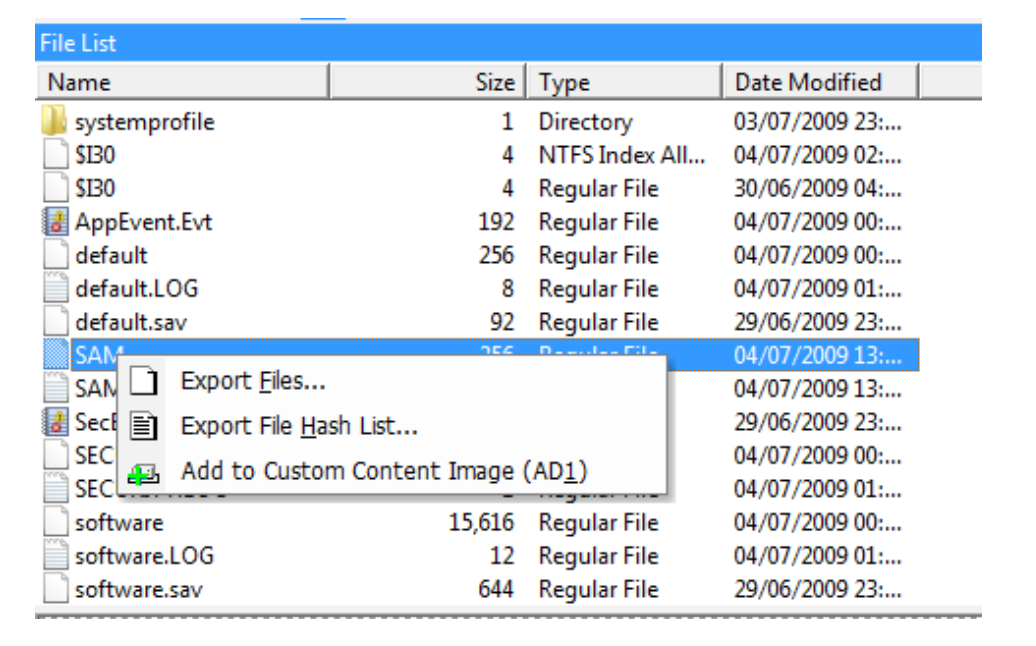
-
Navigate to Documents and Settings.
For each user folder (Elly, Granny, Jed, Jethro), export the corresponding NTUSER.DAT file.
This hive contains user-specific settings such as recent activity, program usage, and application preferences.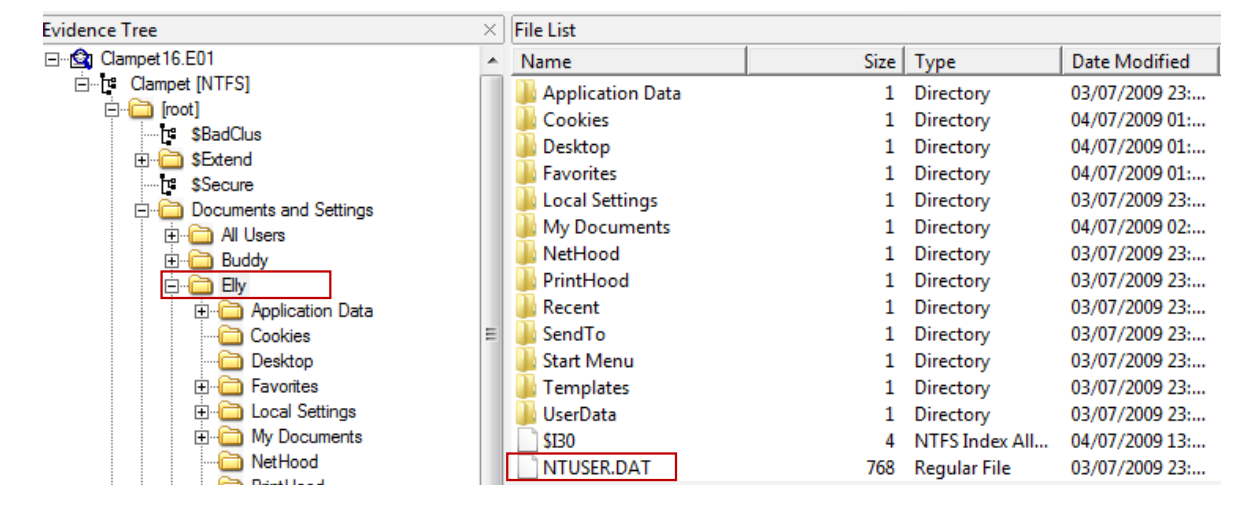
Task 2: Registry Viewer Searching
This task introduces keyword and date-based searches to identify relevant artefacts.
-
Launch FTK Registry Viewer.
If not installed, download it from: https://www.exterro.com/ftk-product-downloads/registry-viewer-2-0-0If prompted with No Security Device Was Found, select No to continue.
-
Open the NTUSER.DAT file for Jethro.
User hives are extremely valuable, as they reveal recent activity and user-specific settings.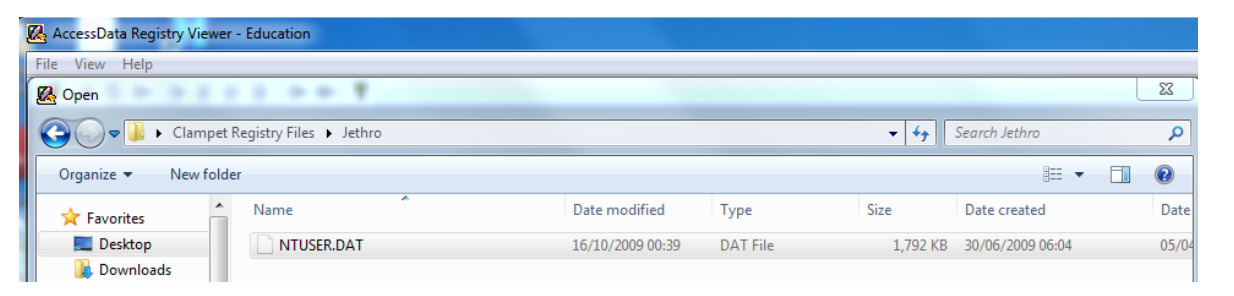
-
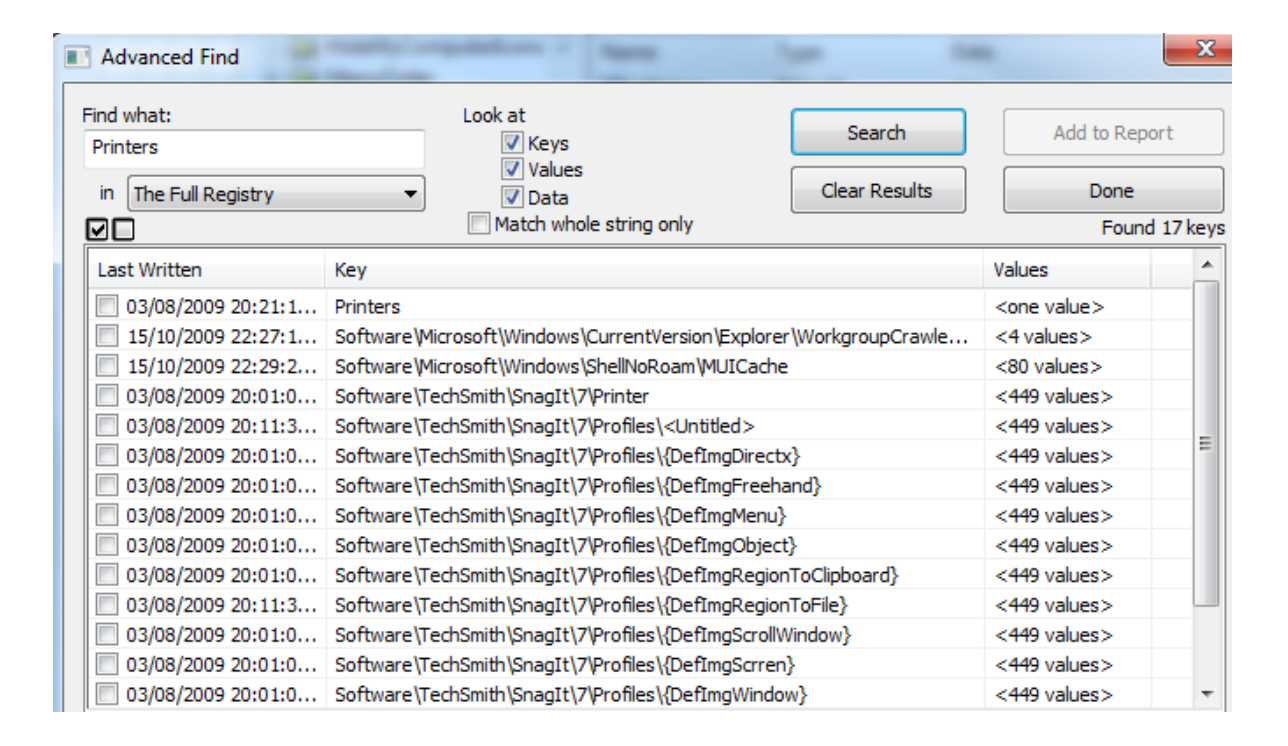
Use Edit → Find to search for Printers.
This helps identify printing activity or installed virtual printers.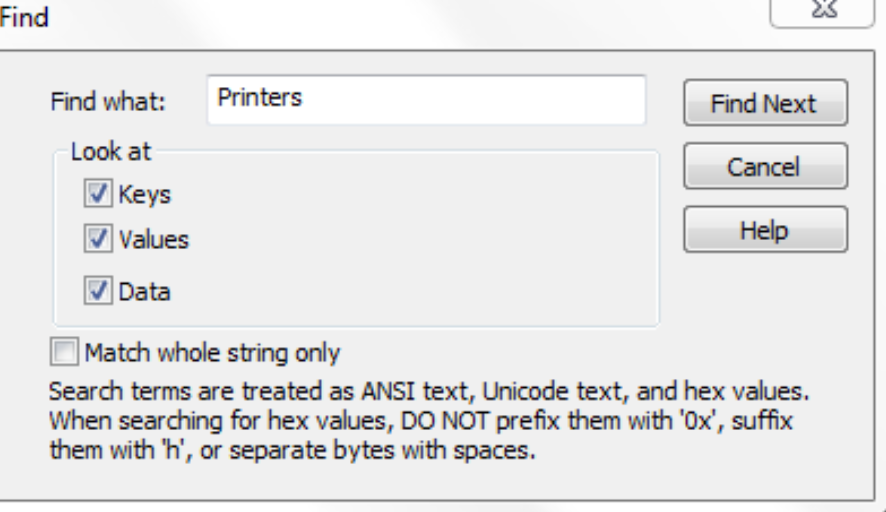
-
Use Find Next (F3) to move through the entries.
Look for network printers or unusual printer paths, as they may indicate past connections.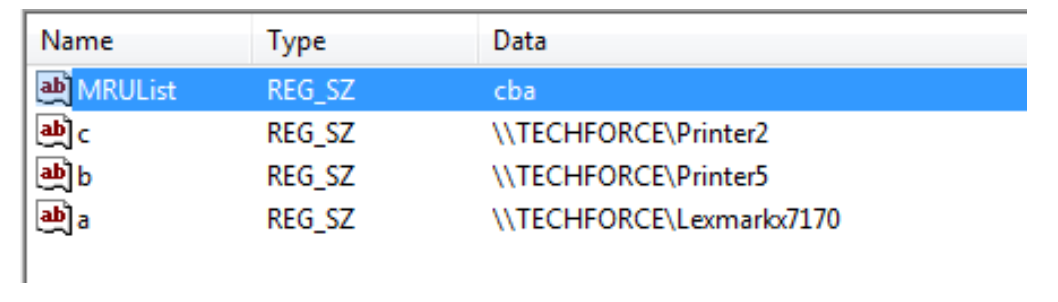
-
Check relevant entries and add them to the Report.
Reporting allows you to collect evidence in a structured format. -
Clear search results when finished.
-
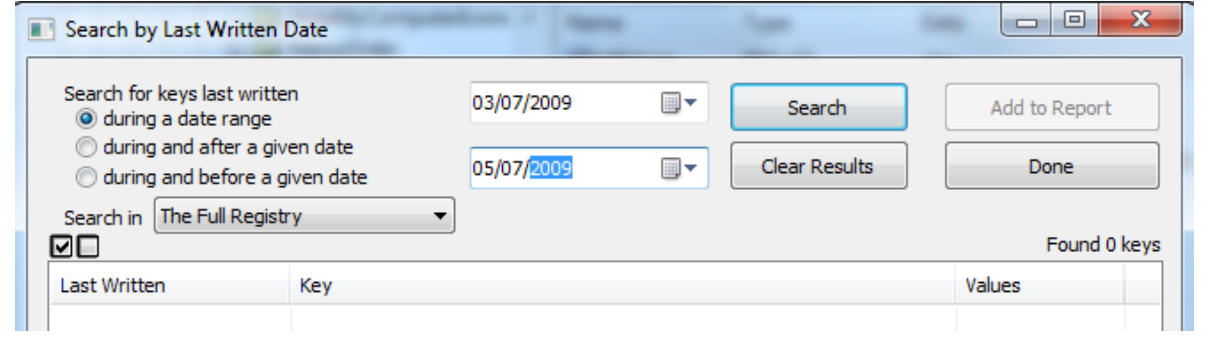
Select Edit → Search by Date.
This feature highlights registry keys modified within a given timeframe. -
Choose During a date range and enter the example settings.
-
Review the returned results.
Registry timestamps often help reconstruct timelines, showing when software was installed, settings changed, or user activity occurred.
Task 3: Reviewing the SAM Registry
The SAM hive stores local user account data. It is essential for identifying who used the system and how often.
-
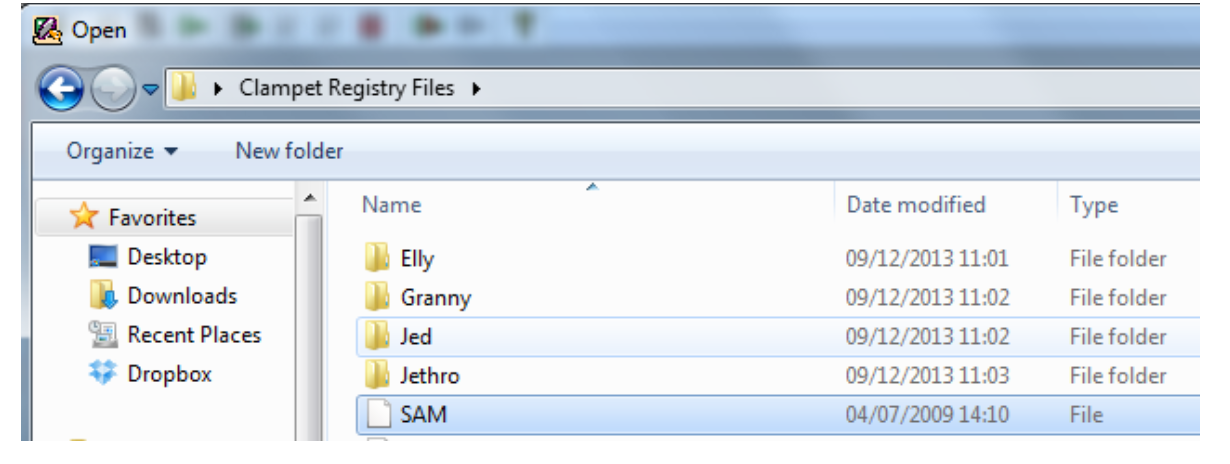
Open the SAM registry file.
-
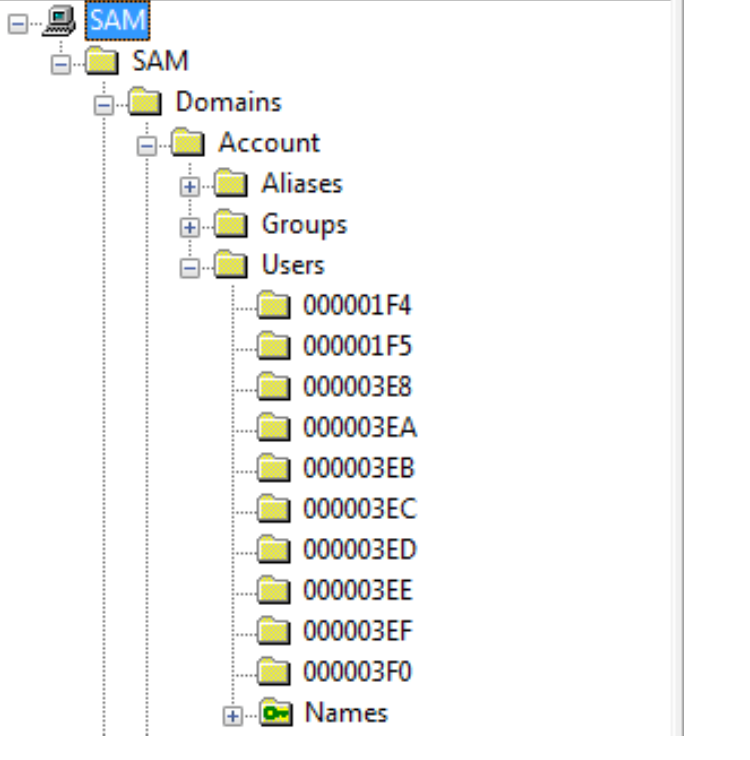
Expand the following structure:
SAM → Domains → Account → Users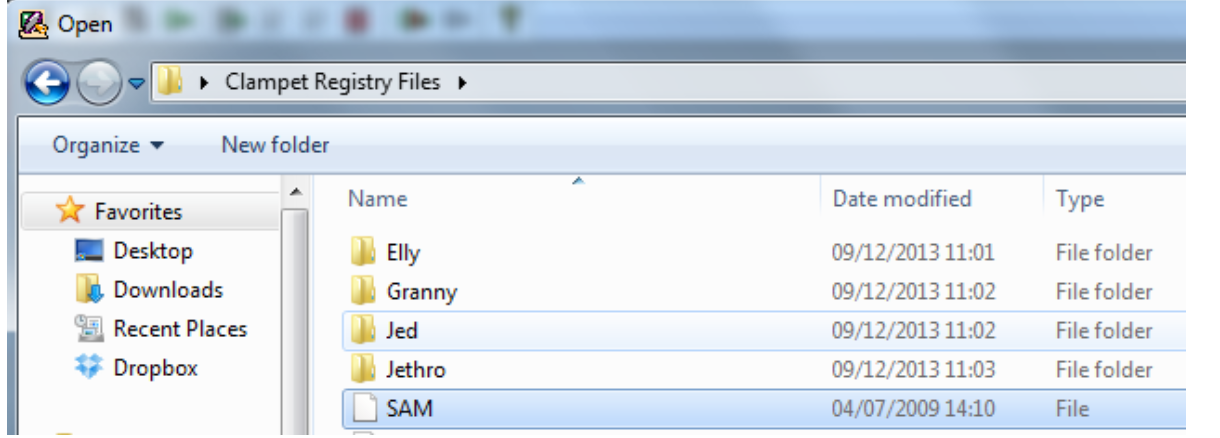
-
Select the user with subkey 000003E8.
Review the properties and complete the table:- SID Number:
- User Name:
- Full Name:
- Logon Count:
- Last Logon Time:
These values help identify which account corresponds to which individual and how active the account was.
Task 4: Reviewing the SYSTEM Registry
The SYSTEM hive provides details on system configuration, startup settings, connected devices, and time settings.
-
Open the SYSTEM registry file.
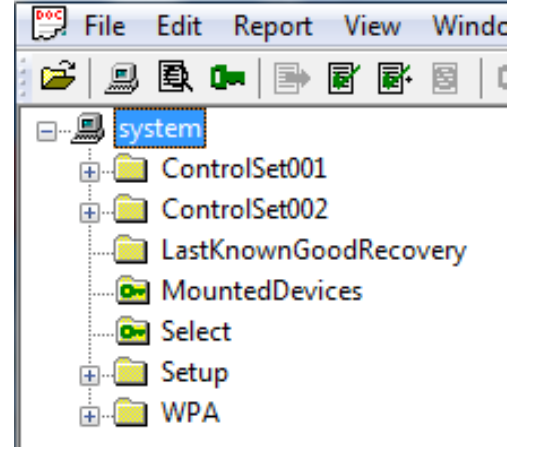
-
Select the Select subkey.
This reveals which ControlSet was active when the system was last running.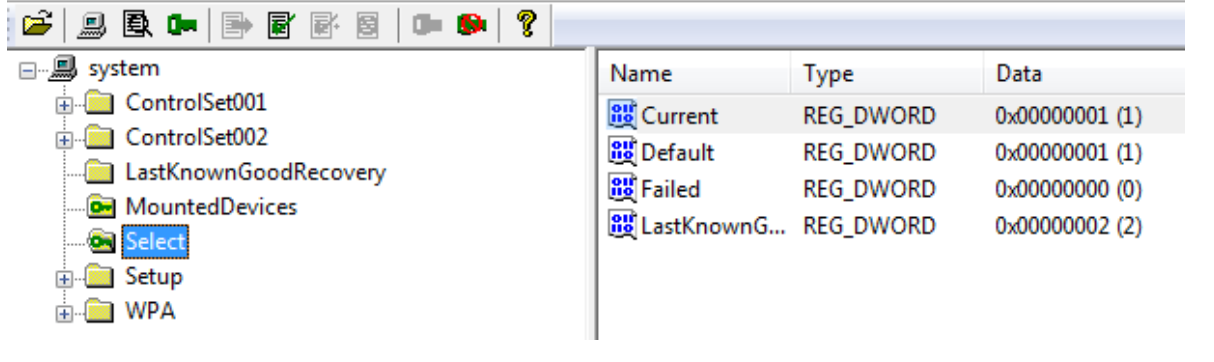
-
Navigate to:
System → CurrentControlSetXXX → Control → TimeZoneInformation
Time zone details are essential when aligning log files and event timestamps.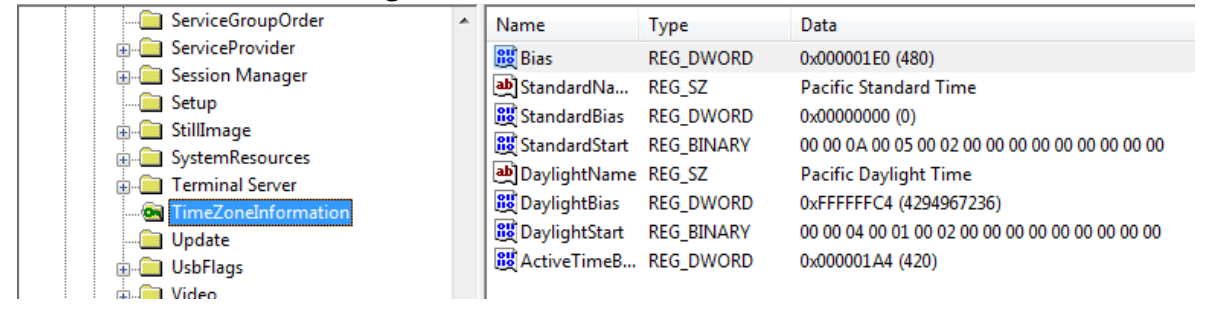
Task 5: Reviewing the SOFTWARE Registry
The SOFTWARE hive contains details about installed software, system version, updates, and licensing.
-
Open the SOFTWARE registry file.
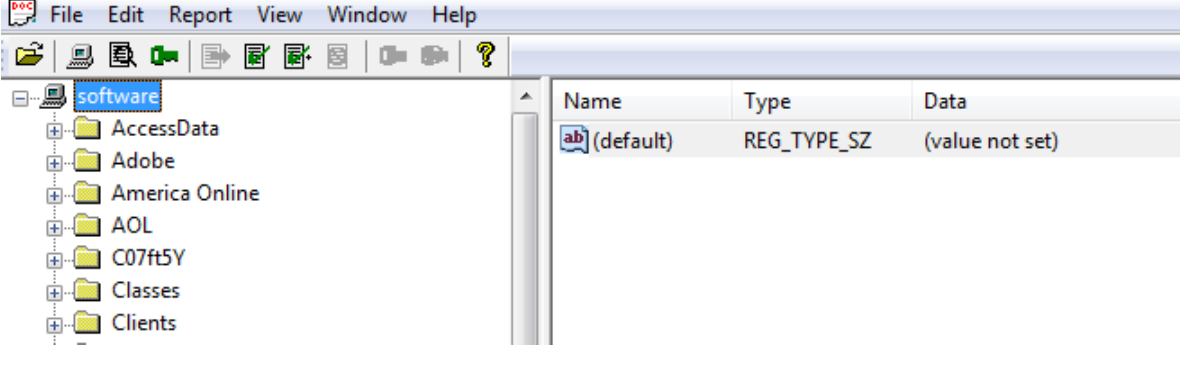
-
Navigate to:
Microsoft → Windows NT → CurrentVersionExtract the following information:
- Registered Owner
- Registered Organisation
- Product Name
- OS Service Pack Information
- Product ID
These values help build a profile of the system identity, OS version, and licensing information.
Best,
Ali.