
Week 9: Lab 1 - Windows Event Logs
Objectives of this lab session
- Use Windows Event Viewer to locate, view and monitoring windows log files and critical windows events.
- Configure a security audit policy that will capture login success and failure attempts.
In this lab, you will investigate Windows logon events using Windows10 VM examples as an overview of general concepts. You will also configure a security audit policy that will capture login success and failure attempts.
Further information related to windows log events can be found from the following links:
Activity 1 - INVESTIGATING LOG FILES
-
Login to your Windows 10 virtual machine.
-
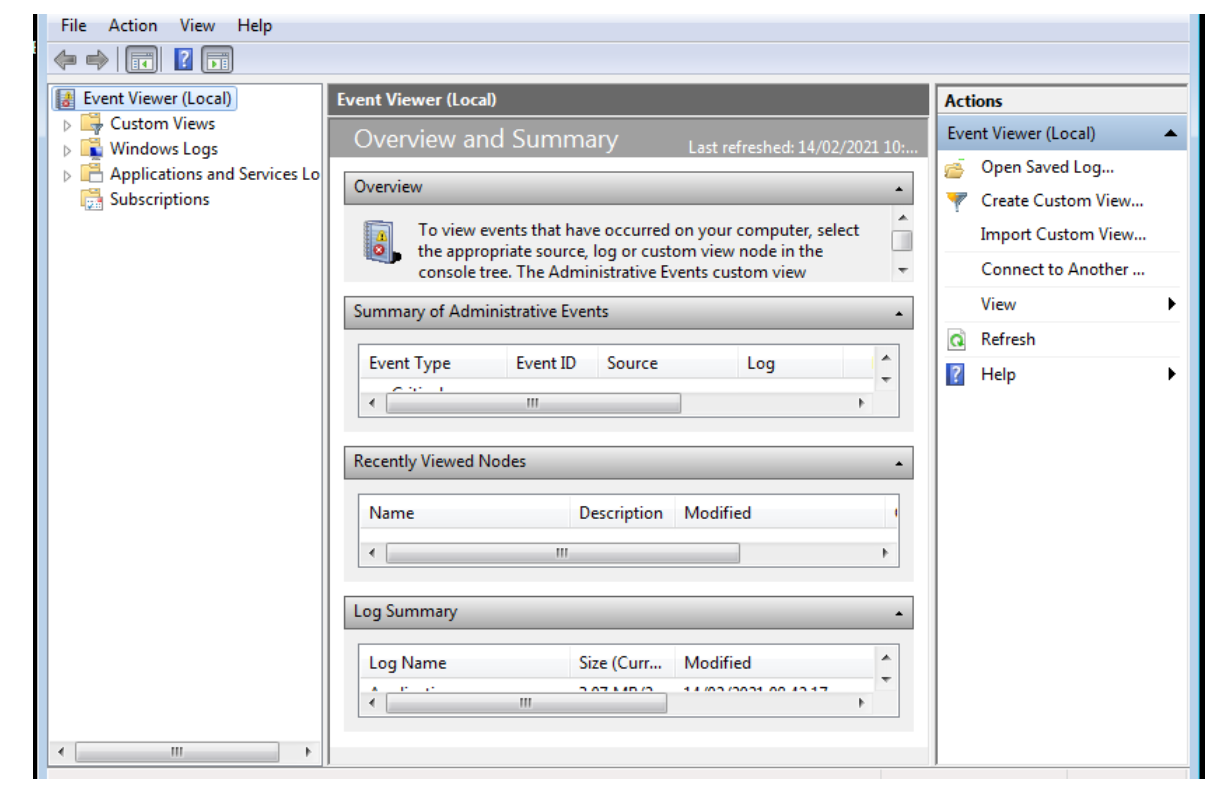
From the Windows virtual machine, launch the Event Viewer console by searching from the "Start" menu and typing in Event Viewer and clicking "OK".
-
Expand and investigate Custom Views.
-
Expand the "Windows Logs" and then click on "System" event log. The right pane contains information related to system components.
- What is the Event ID for the warning event with Source: DNS Client Events?
- When this event has been logged?
-
Click on "Application" event log. The right pane contains information related to the successful operation of a task. Such as an application, driver, or service.
-
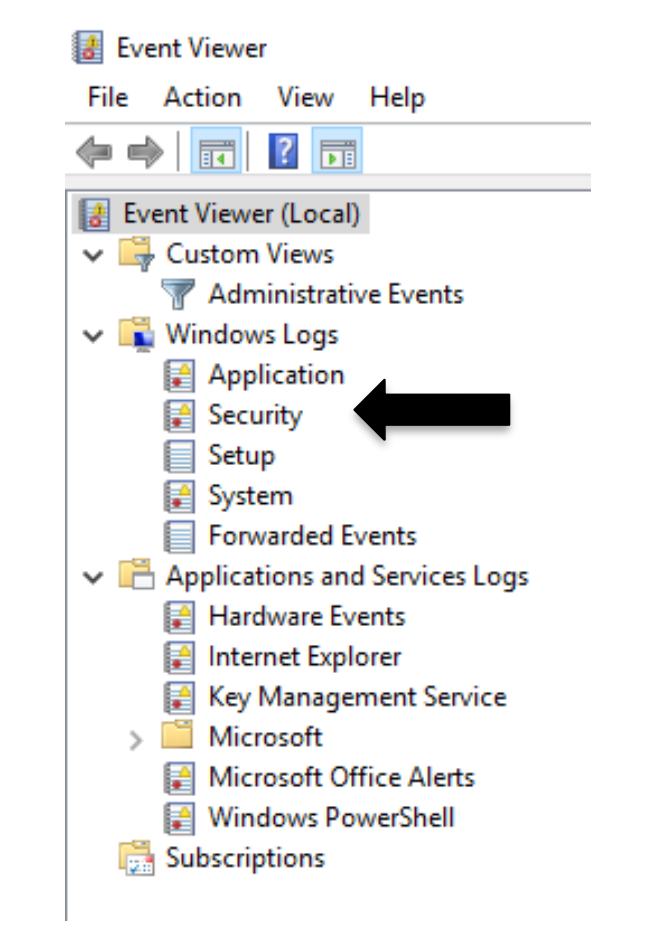
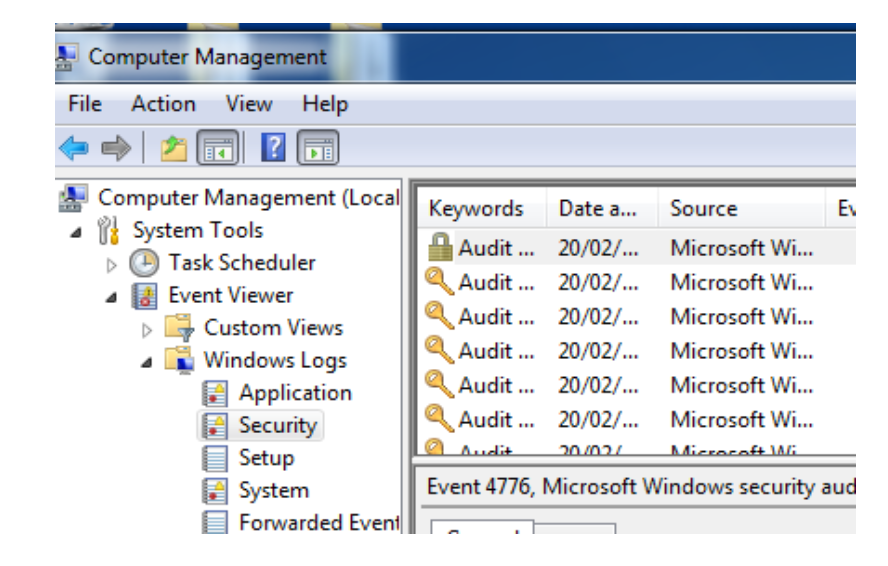
Expand the "Windows Logs" and then click on "Security" event log. The right pane contains logging information related to security events. For the remaining part of this lab, you will work on the "Security" event log section.
-
On the right side, look at the Security Keyword, Date and Time, Event ID and Task Category.
- What is the Date & Time and Event ID for the first event with Audit Success?
-
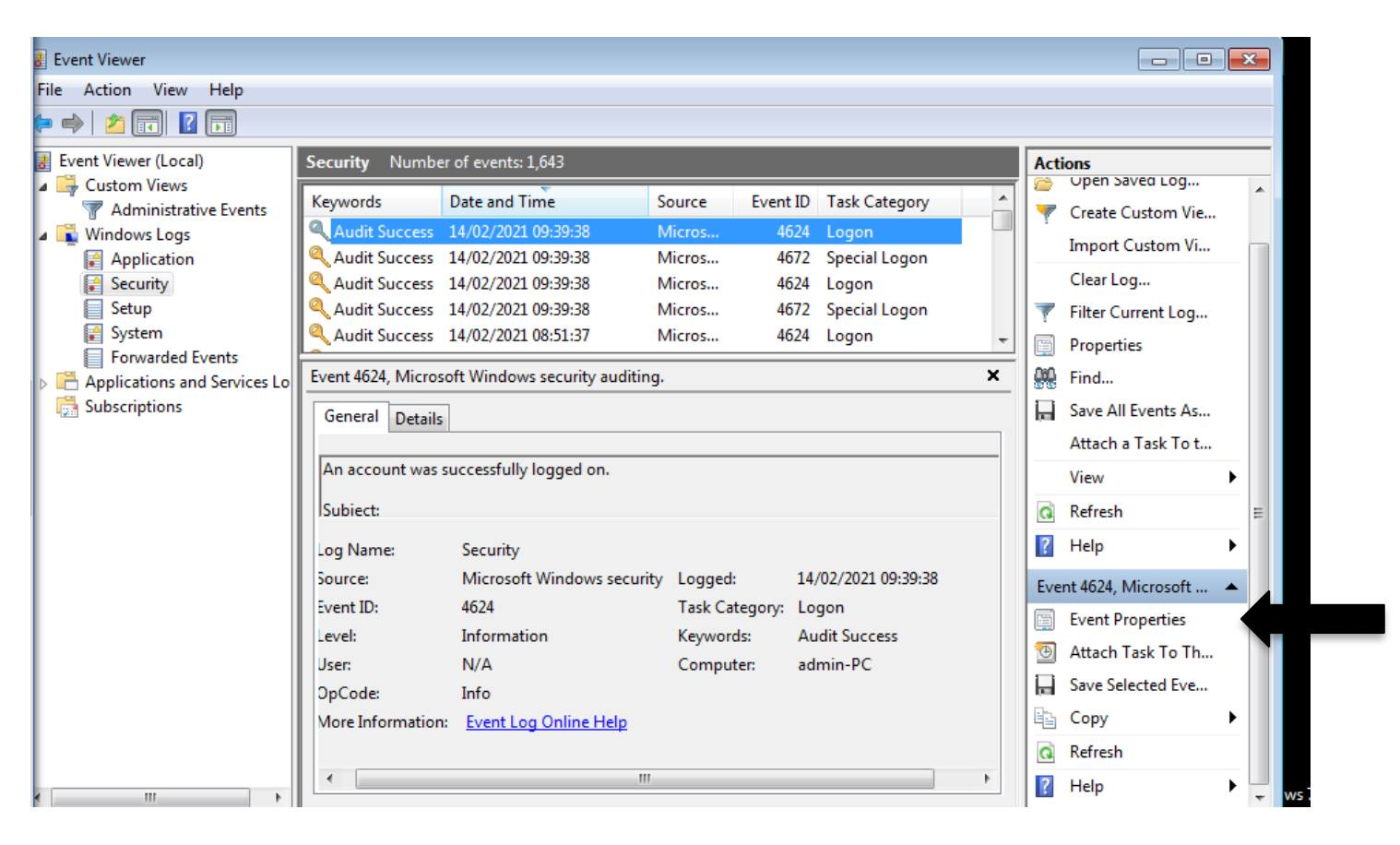
Expand the Event Properties for the event ID 4624 with Logon Type 2, under Subject section what is the logon ID?
-
Expand the Event Properties for the event ID 4624 with Logon Type 3, what is the logon ID?
-
Search through the log and find the entry showing the Per-user audit policy table was created.
- What is the event ID and policy ID for this event?
-
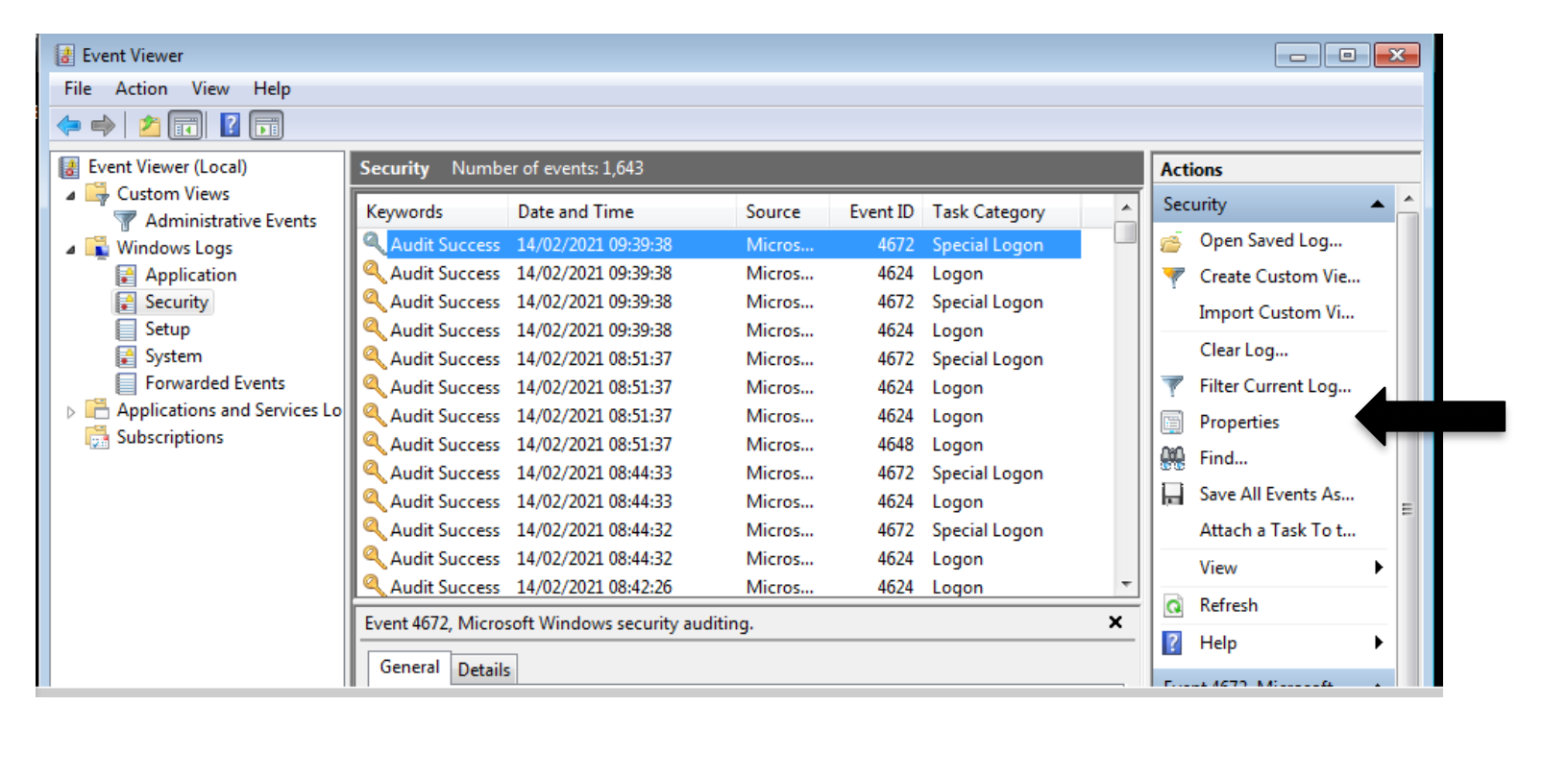
On the right side, look at the properties for security log and identify log path and log size.
-
Identify Logon Types for the event ID 4624, with Audit Success and Logon Task Category (with the entry showing An account was successfully logged on). Explain each type.
-
Search through the log and find the entry showing A logon was attempted using explicit credentials with Audit Success.
- What is the event ID and the Ip Address for this event?
Activity 2 - Configure a group policy and test local logon events
-
Launch the Group Policy system console by navigating to the "Run" command from the "Start" menu and typing in gpedit.msc and clicking "OK".
-
Expand the "Computer Configuration", "Windows Settings", "Security Settings", "Local Policies" icons and click the "Audit Policy" icon.
-
On the right side, look at the auditing options available. Double click the following Audit Policy objects and select the "Success" and "Failure" checkboxes. Read the details about each from the associated tab:
- Audit account logon events
- Audit logon events
- Audit privilege use
Exit out of the console and reboot the virtual machine.
-
After rebooting, attempt to log back on, but type in an incorrect password. After receiving an error, log in with the correct password.
-
Launch the Event Viewer console again and look at the "Security" event log. Search the right pane for the "Audits Failure".
- What type of useful information appears in the log entry?
-
What is the Event ID for the Sensitive Privilege Use task category with Audit Failure (with entry showing: A privileged service was called)?
-
What is the Event ID for the Sensitive Privilege Use task category with Audit Failure (with entry showing An operation was attempted on a privileged object)?
-
What is the Event ID and Logon Type for the Logon task category with Audit Failure (with entry showing An account failed to log on)?
- System logs are a critical component of a forensic investigation and a vital asset to protect.
- Different operating systems, applications, and even network devices and servers support varying types of logging capabilities and levels of granularity. However, as illustrated in this activity, if not properly configured they may not be useful at all in the event a data breach or malicious attack.
Activity 3 - Investigate the following questions
-
Investigate and identify common Windows event IDs and their significance in forensic investigations.
-
What are the common event IDs associated with unauthorised access or login attempts in the security log?
-
What types of system-level events should you look for in the System log to identify suspicious activity?
-
What additional forensic tools or techniques could be used to complement your analysis of the Event Viewer logs?
End of Lab