

Run the DVWA Docker image using Docker Desktop MacOS and Win
This lab guides you through installing Docker Desktop and running the Damn Vulnerable Web Application (DVWA) image locally.
1. Install Docker Desktop
- Download and install Docker Desktop:
https://www.docker.com/products/docker-desktop/ - Open Docker Desktop after installation.
- Windows users: you may need to enable or install WSL. See:
https://docs.docker.com/desktop/features/wsl/
2. Search for the DVWA image
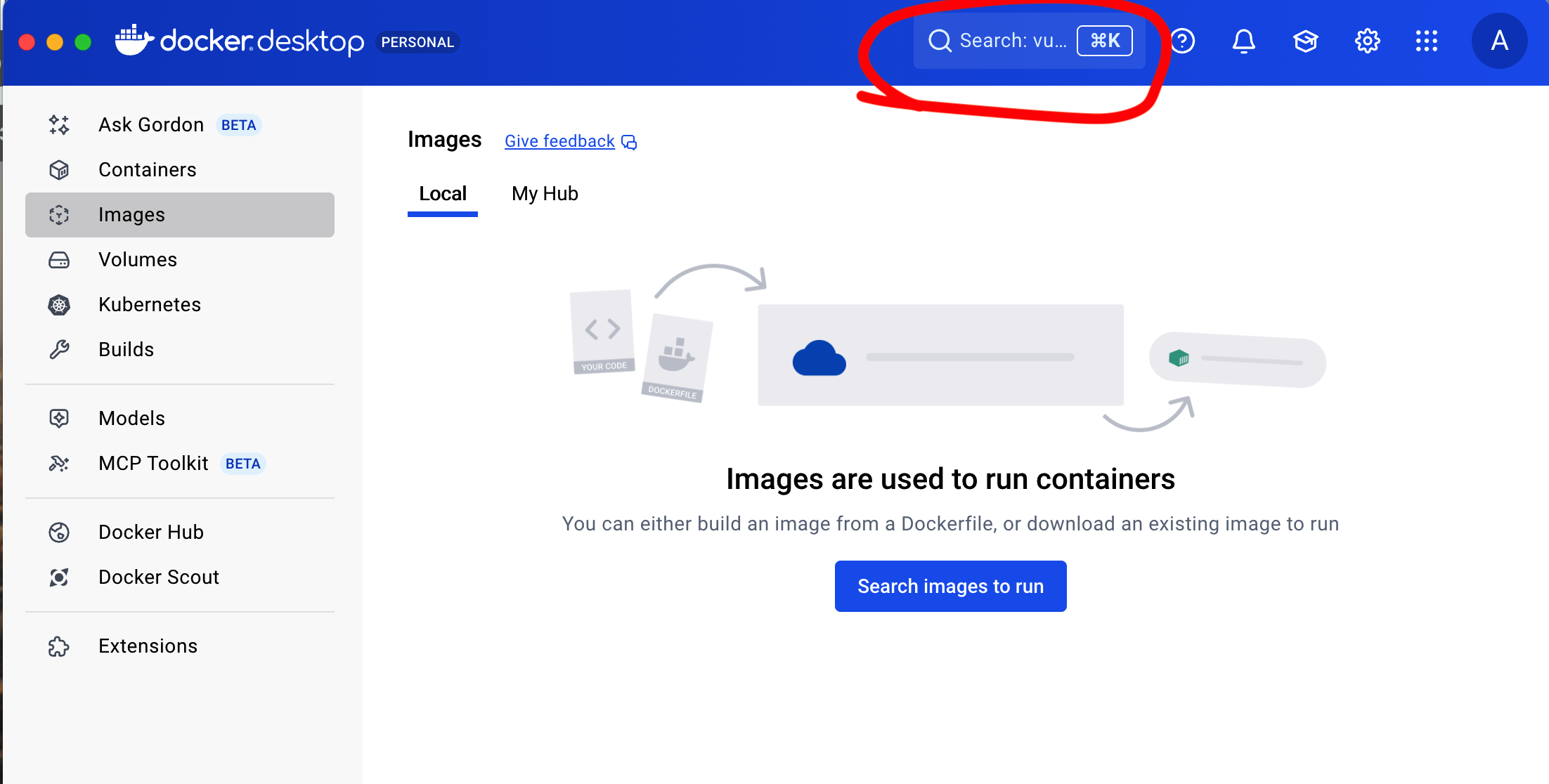
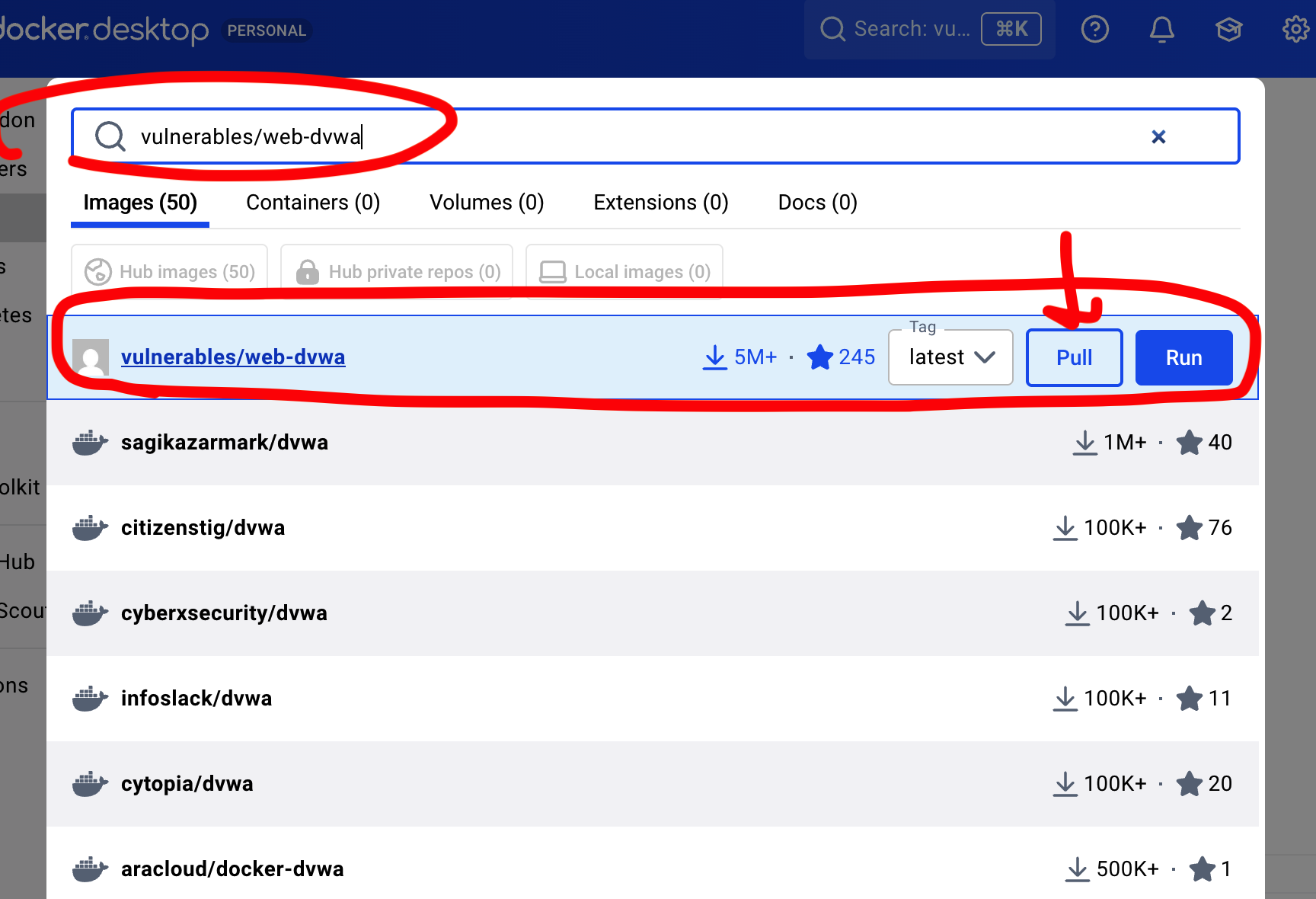
- In Docker Desktop, use the Search field and type:
vulnerables/web-dvwa - Pull the first result.
3. Run the pulled image
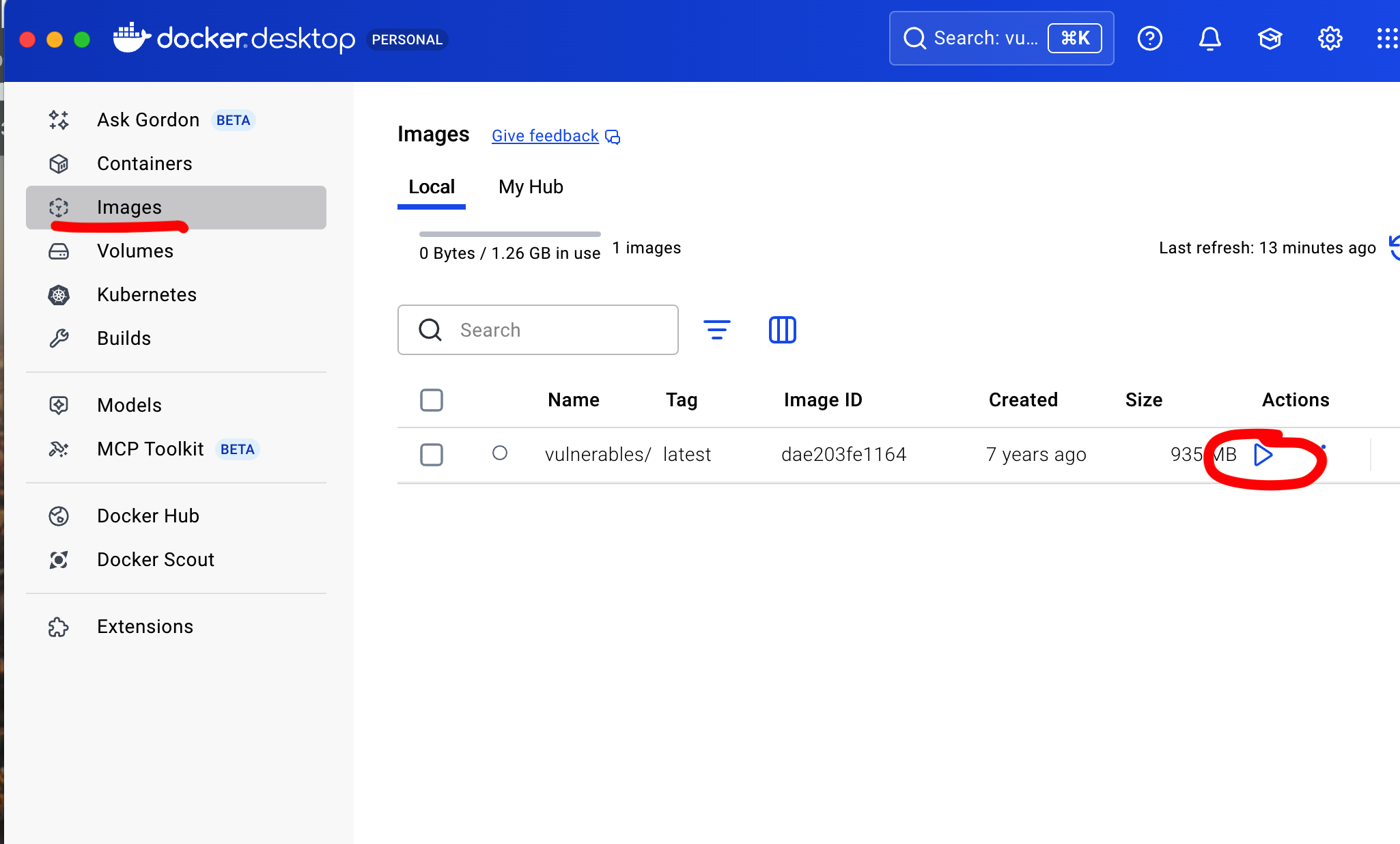
- Go to the Images tab and find the image you pulled. Click Run.
- In the run dialog:
- Set a container name (for example
dvwa-container). - Map ports. For example map container port
80to host port8080(you can choose another host port if you prefer).
- Set a container name (for example
Example mapping:
Host port: 8080
Container port: 80
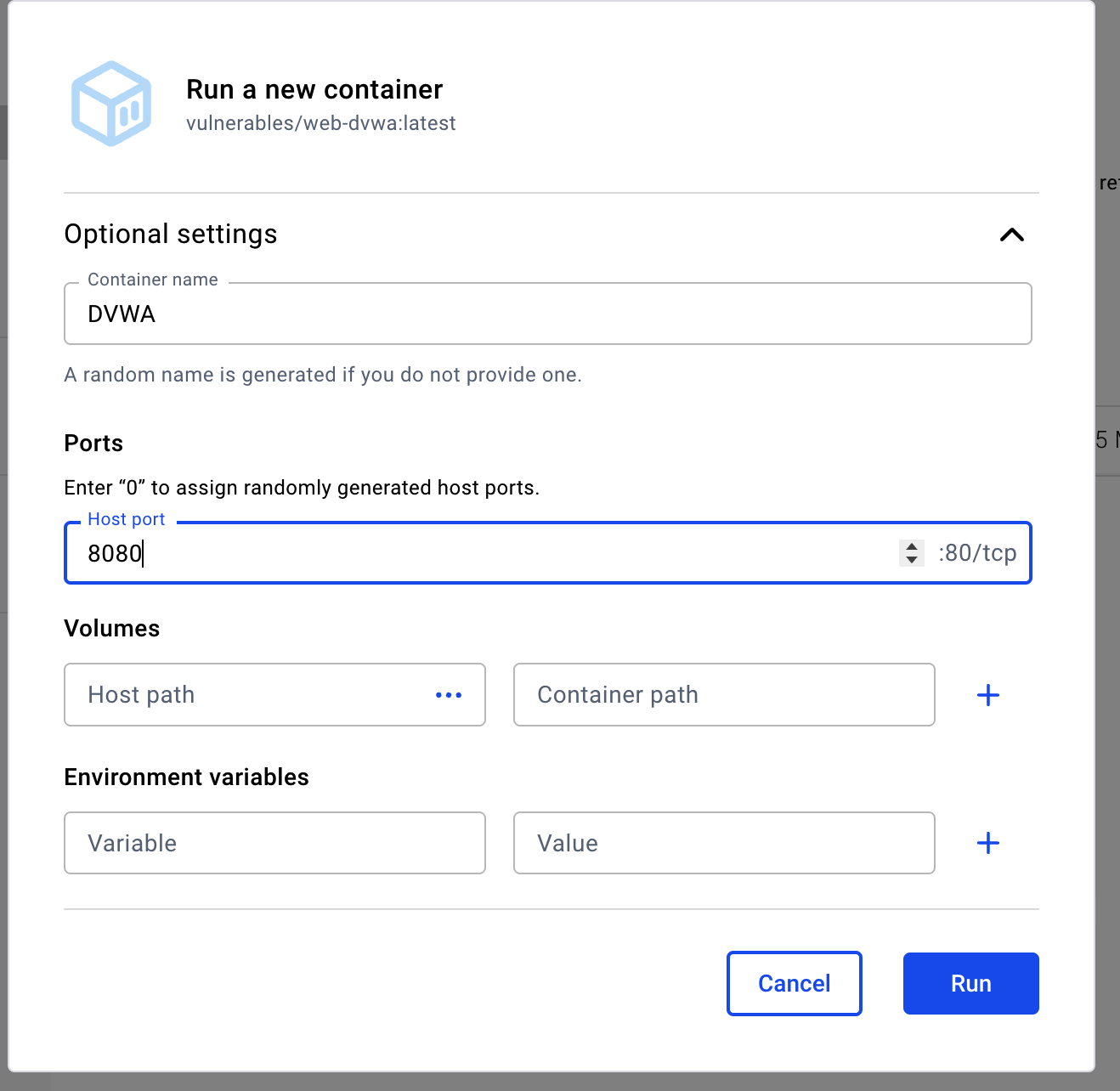
- Click Run Container.
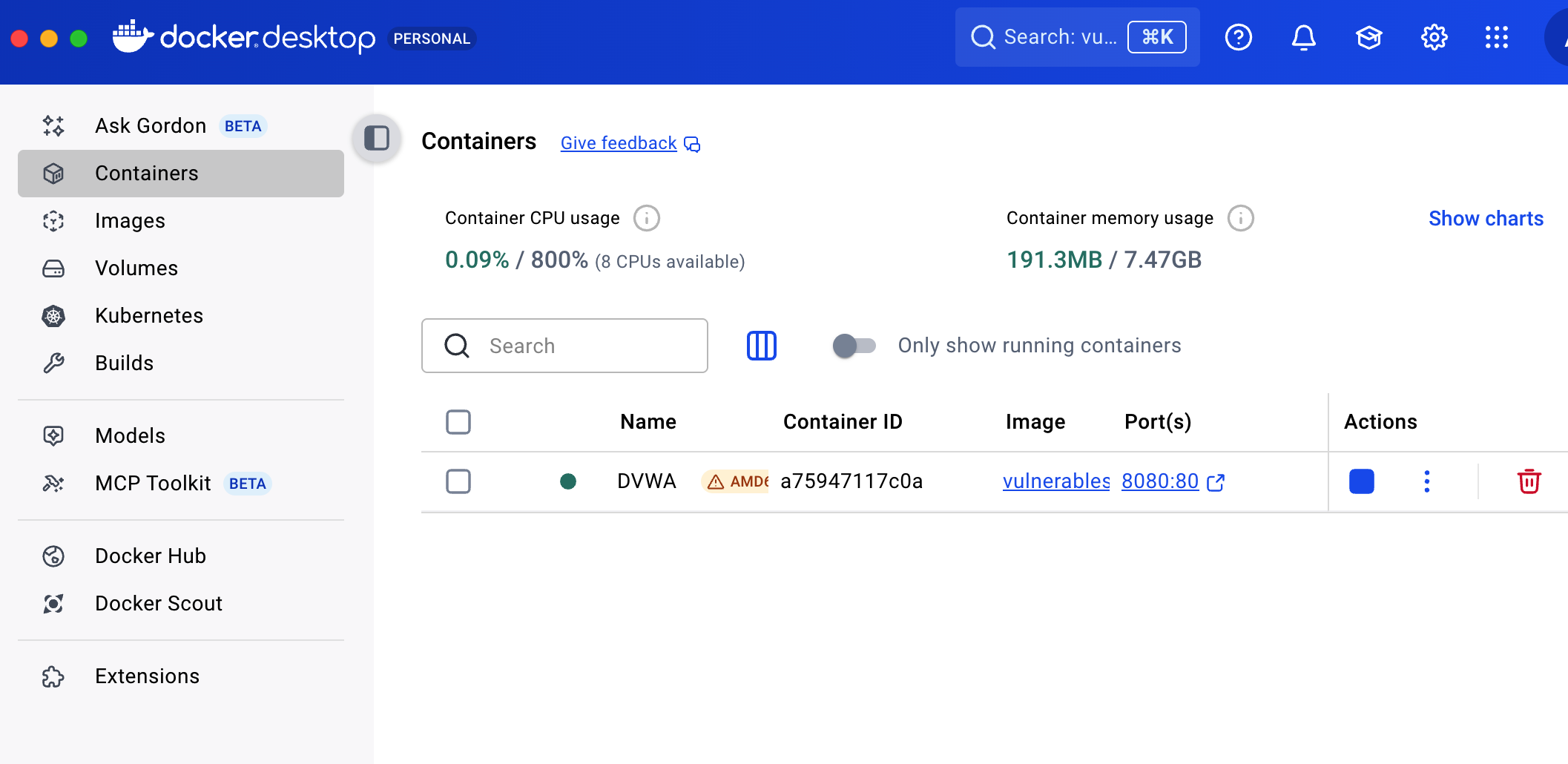
4. Confirm the container is running
- Open the Containers tab in Docker Desktop.
- You should see your container listed and running.
5. Access DVWA in your browser
- Open a web browser and go to:
http://localhost:8080
Replace 8080 with the host port you used if different.
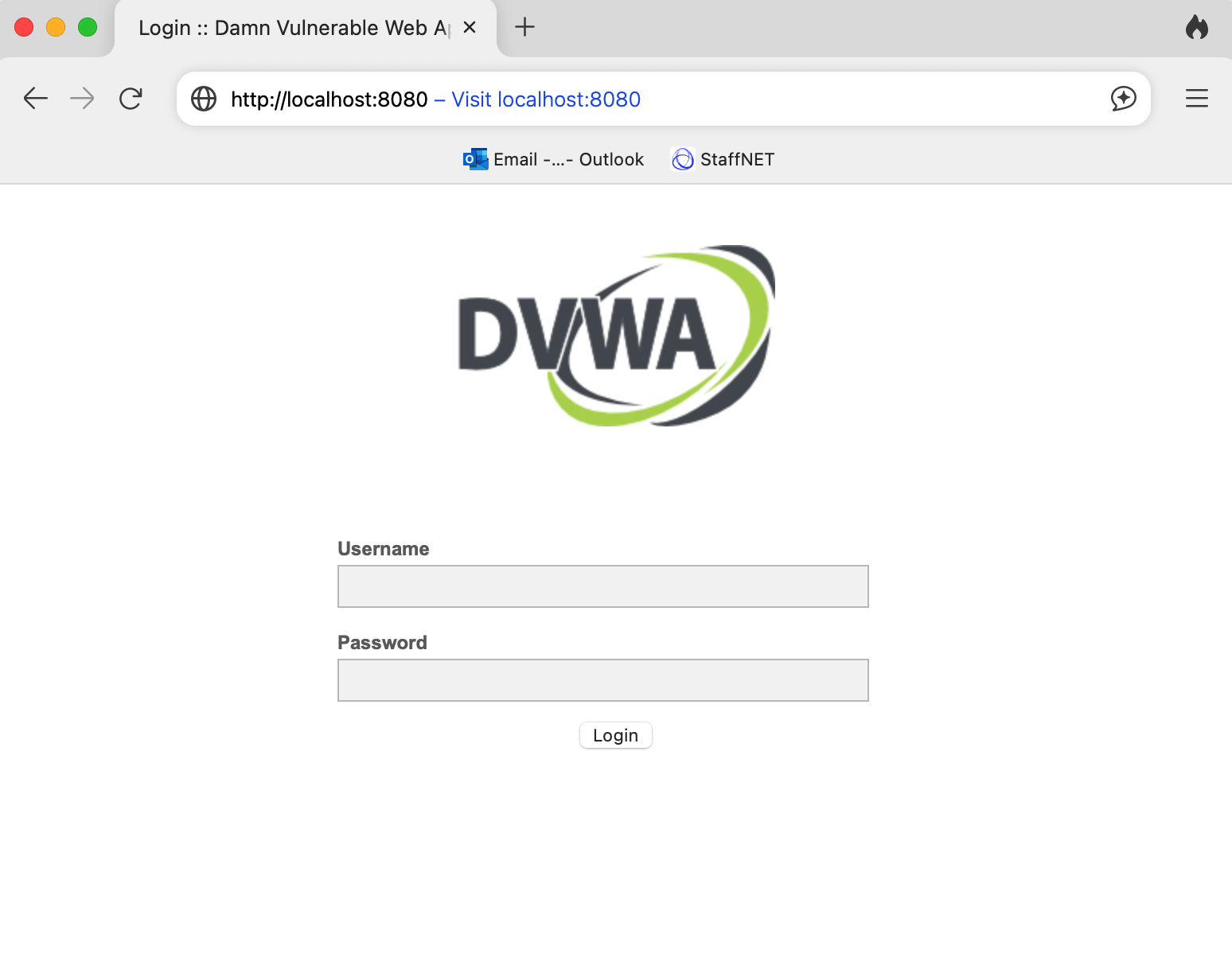
- Login with the default credentials:
- Username:
admin - Password:
password
You are now ready to use DVWA locally.
Best,
Ali